How to Create a YouTube Video With AI: A Step-by-Step Guide
Creating a YouTube video can take hours. You need to find an idea, write a script, record a voiceover, create or find visuals, edit the video, design a thumbnail, and finally publish everything on YouTube.
Artificial intelligence can simplify many of these steps.
Today, you can use AI to brainstorm ideas, write scripts, generate images and video clips, create voiceovers, edit footage, generate captions, and even help with thumbnails.
But using AI doesn’t mean pressing one button and expecting a perfect video.
The best results usually come from combining several AI tools with human creativity, editing, and fact-checking.
In this guide, you’ll learn how to create a YouTube video with AI from idea to publication, even if you’re a complete beginner.
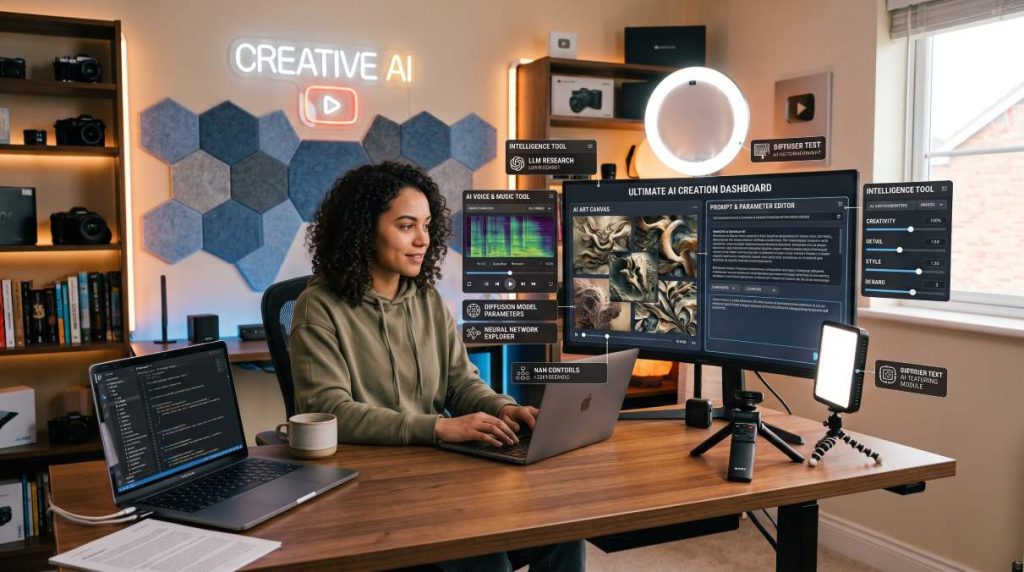
Can You Really Create a YouTube Video With AI?
Yes.
AI can assist with almost every stage of the video creation process.
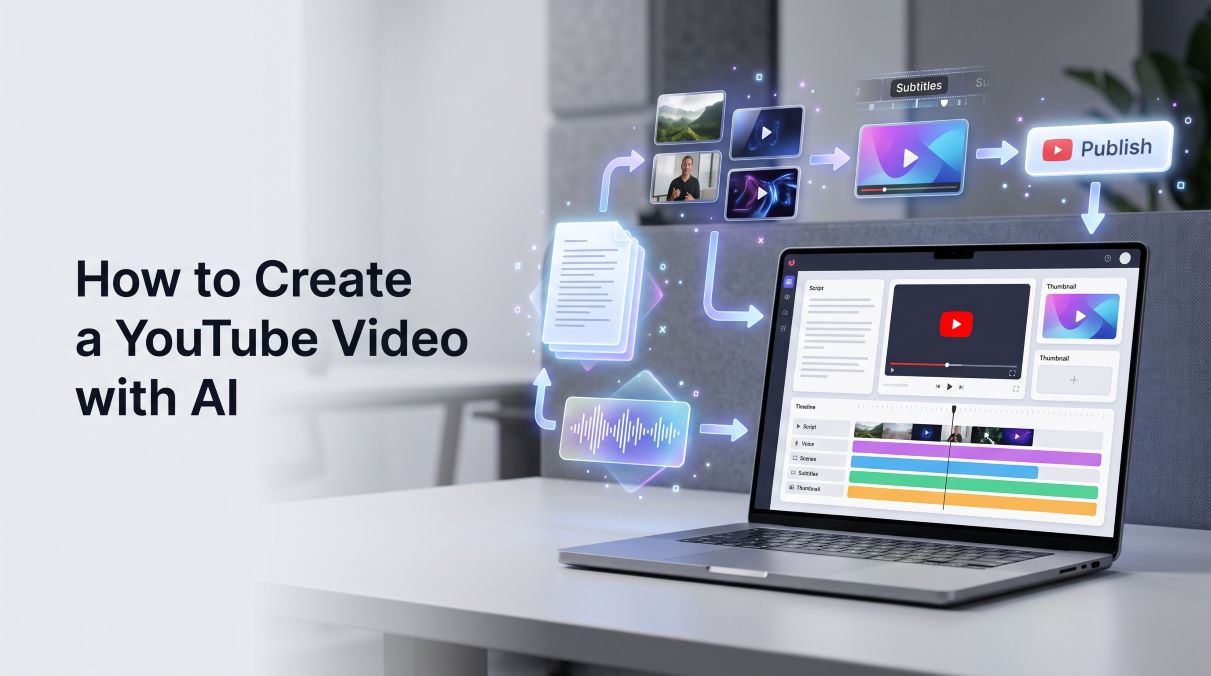
A typical AI-assisted workflow can look like this:
Idea → Research → Script → Voiceover → Visuals → Editing → Thumbnail → Upload
However, AI should be treated as an assistant rather than a complete replacement for the creator.
You still need to choose the topic, review the information, control the creative direction, and make sure the final video provides real value to viewers.
Step 1: Choose a YouTube Video Topic
Before opening an AI video generator, you need a good topic.
A common mistake is to start generating content before deciding exactly what the video is supposed to accomplish.
Your topic should ideally solve a problem, answer a question, explain something interesting, or entertain a specific audience.
For example, instead of choosing:
“Artificial Intelligence”
Choose something more specific:
“5 AI Tools That Can Save Small Business Owners Hours Every Week”
The second idea gives you a much clearer audience and purpose.
Use AI to Generate Video Ideas
You can use ChatGPT or another AI assistant to brainstorm potential topics.
Example prompt:
“Give me 20 YouTube video ideas for a channel about AI tools for entrepreneurs. Focus on practical problems, strong viewer curiosity, and topics suitable for beginners.”
Don’t automatically choose the first idea AI gives you. Use the suggestions as a starting point, then evaluate which topics are genuinely useful and interesting.
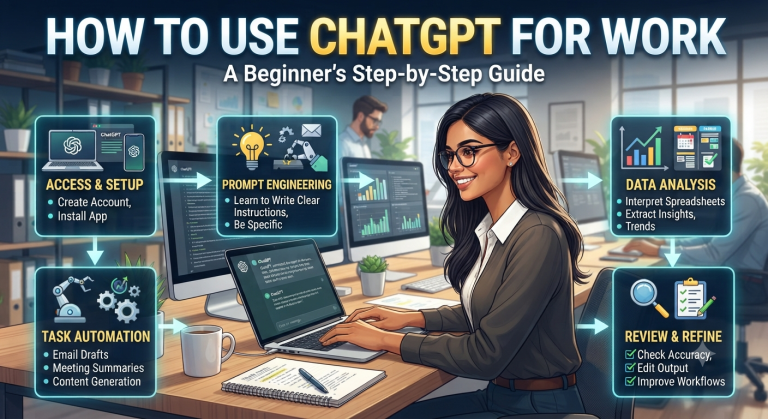
If you want to learn more about using AI effectively, check out our guide How to Use ChatGPT for Work: A Beginner’s Guide.
Step 2: Research Your Topic
Once you’ve selected a topic, research it before writing your script.
This is especially important when creating videos about technology, finance, health, current events, or other subjects where information can change.
AI can help organize your research, but you should verify important claims using reliable sources.
You can ask AI:
“Create a research checklist for a YouTube video about AI productivity tools. List the information I should verify before writing the script.”
Then use official websites, reputable publications, and primary sources to verify the important information.
Step 3: Write the YouTube Script With AI
Once you understand the topic, it’s time to create the script.
Instead of asking:
“Write me a YouTube script.”
Give the AI more context.
Example Prompt
“Act as an experienced YouTube scriptwriter. Write a 7-minute YouTube script about 5 AI tools that can help small business owners save time. Start with a strong hook, keep the explanations practical, use simple English, create curiosity between sections, and finish with a clear call to action.”
A good YouTube script usually contains:
- Hook
- Introduction
- Main content
- Examples
- Transitions
- Conclusion
- Call to action
Create a Strong Hook
The first few seconds of your video are extremely important.
Avoid starting with a long introduction about yourself.
Instead, create curiosity.
For example:
“You’re probably wasting hours every week on tasks that AI can do in minutes. Here are five tools that can change the way you work.”
The exact hook should depend on the topic and audience.
For more practical AI prompts, readers can explore the Prompt Library.
Step 4: Create the Voiceover
Once your script is ready, you need a voiceover.
You have several options:
- Record your own voice
- Use an AI voice generator
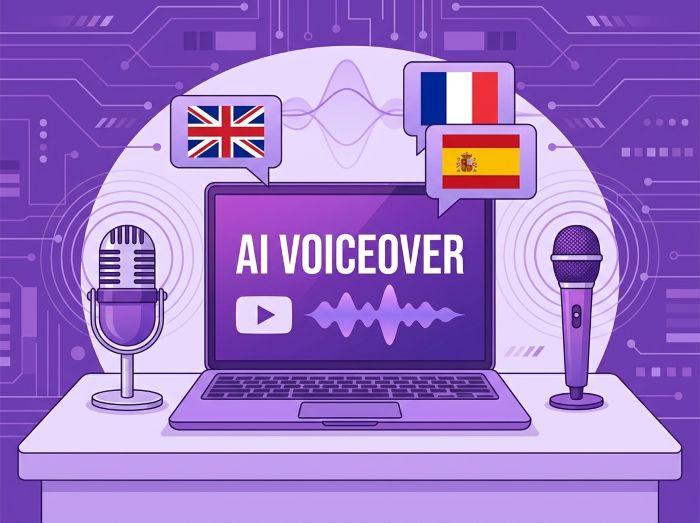
- Use text-to-speech
- Combine your own narration with AI-generated voices
If you’re building a long-term YouTube channel, your own voice can help create a stronger connection with the audience.
However, AI voice generation can be useful when you don’t want to record yourself or when you’re creating content in multiple languages.
Step 5: Generate the Visuals
Your next step is to create the visual material for your video.
Depending on the type of video you’re making, you can use:
- AI-generated images
- AI-generated video clips
- Screen recordings
- Stock footage
- Product screenshots
- Your own footage
- Animations
For example, a tutorial about an AI tool should usually include screenshots or screen recordings instead of relying entirely on AI-generated visuals.
Generate Images With AI
If you need an illustration or a specific scene, an image generator can create it from a text prompt.
For example:
“Modern entrepreneur working on laptop in a futuristic AI-powered office.”
Keep your visual style consistent throughout the video.
Generate Video Clips With AI
AI video generators can create short clips from text prompts or animate existing images.
YouTube itself now offers AI-powered creation features through YouTube Create in selected countries, including tools that can generate short video clips from prompts. Availability varies by country and feature. (Aide Google)
Third-party tools can also generate video from text or images. For example, CapCut currently offers AI video generation and image-to-video capabilities. (CapCut)
You can learn more about AI-powered video creation on the official CapCut AI video page.
Step 6: Match the Visuals to Your Script
Don’t simply generate random clips and put them together.
Each visual should support what the narrator is saying.
For example:
Voiceover:
“AI can automatically summarize long documents.”
Visual:
A screen recording showing a document being summarized by an AI tool.
This creates a stronger connection between the narration and the visuals.
Step 7: Edit the Video
Now it’s time to bring everything together.
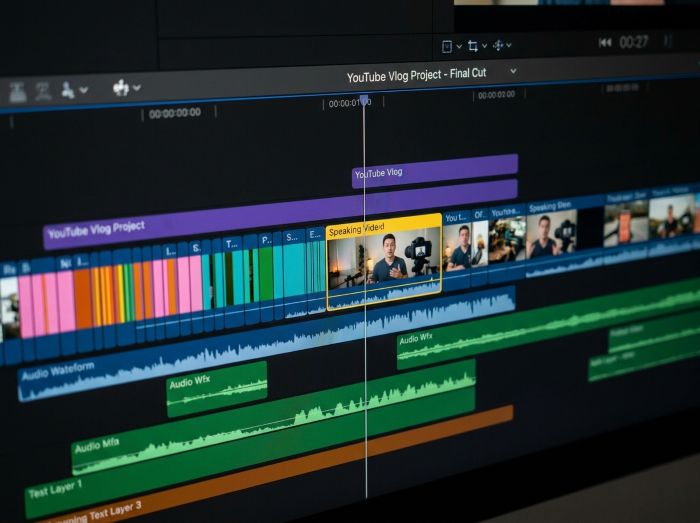
You can use a traditional video editor or an AI-powered editing tool.
A basic editing workflow looks like this:
- Import the voiceover
- Add video clips
- Add images
- Synchronize visuals with narration
- Add captions
- Remove unnecessary pauses
- Add transitions
- Adjust audio levels
- Add background music if appropriate
- Export the final video
Don’t overuse transitions or visual effects.
Simple and clean editing is often easier for viewers to follow.
Add Captions
Captions can make your videos easier to follow, especially when viewers watch without sound.
Many modern video editors can automatically generate captions from your voiceover.
Step 8: Create a YouTube Thumbnail With AI
Your thumbnail is one of the first things potential viewers see.
AI image-generation tools can help you create the visual elements for a thumbnail, but you should still design the final thumbnail specifically for YouTube.
Keep it simple.
A strong thumbnail usually communicates one clear idea rather than trying to explain the entire video.
Example
For a video called:
“5 AI Tools That Save You Hours Every Week”
A simple thumbnail could contain:
5 AI TOOLS
and a visual showing a laptop with several AI interfaces.
Thumbnail Prompt
You can use a prompt such as:
“YouTube thumbnail, entrepreneur looking surprised at laptop, futuristic AI interface, clean composition, strong contrast, space for large text.”
You can then add the actual text yourself in your design software.
Step 9: Create the YouTube Title and Description
AI can also help optimize your title and description.
But don’t let AI create generic titles that sound like clickbait.
Your title should clearly communicate the benefit or curiosity behind the video.
Example
Instead of:
“AI Tools”
Try:
“5 AI Tools That Can Save You Hours Every Week”
The second title gives viewers a reason to click.
If you’re interested in using AI for business workflows, read our guide How to Automate Your Business With AI.
Step 10: Upload Your Video to YouTube
Once your video is ready, upload it through YouTube Studio.
You will typically need to provide:
- Video file
- Title
- Description
- Thumbnail
- Audience settings
- Visibility
- Other publishing details
You can also use YouTube’s own AI-assisted features. For example, YouTube’s Inspiration tab can help creators brainstorm video ideas, titles, thumbnails, and outlines. (Aide Google)
Important: Should You Disclose AI-Generated Content?
Yes, depending on how AI was used.
YouTube currently requires creators to disclose content that is realistically generated or meaningfully altered with AI, such as realistic scenes that never happened or making a real person appear to say or do something they didn’t actually say or do.
During the upload process in YouTube Studio, creators can indicate AI use when the content meets the disclosure requirements.
Importantly, YouTube states that making this disclosure does not by itself reduce a video’s audience or monetization eligibility.
YouTube may also automatically apply AI-related labels in certain circumstances, including content created with YouTube’s own generative AI tools or content carrying certain Content Credentials.
For the latest requirements, always check YouTube’s official guide on disclosing the use of generative AI.
A Simple AI YouTube Workflow for Beginners
If you’re completely new to AI video creation, don’t try to use ten different tools on your first project.
Start with a simple workflow:
1. ChatGPT → Idea + Research + Script
↓
2. AI Voice Tool → Voiceover
↓
3. Image/Video Generator → Visuals
↓
4. CapCut → Editing + Captions
↓
5. Canva or another design tool → Thumbnail
↓
6. YouTube Studio → Upload + Publish
Once you understand the workflow, you can experiment with more advanced tools.
Example: Create a YouTube Video in One Workflow
Let’s imagine that we want to create a video titled:
“5 AI Tools Every Freelancer Should Know”
Our workflow could look like this:
Step 1 — Idea
Choose the topic and define the target audience.
Audience: Freelancers
Goal: Discover useful AI tools
Step 2 — Script
Use ChatGPT to create a structured 6–8 minute script.
Step 3 — Voice
Generate or record the narration.
Step 4 — Visuals
Create:
- Tool screenshots
- AI-generated illustrations
- Short AI video clips
- Screen recordings
Step 5 — Editing
Import everything into your editor and synchronize the visuals with the narration.
Step 6 — Thumbnail
Create a simple thumbnail featuring the number 5 and a strong visual related to AI tools.
Step 7 — Upload
Upload the video to YouTube, add the title, description, thumbnail, and appropriate disclosure information if required.
Common Mistakes to Avoid
Publishing Raw AI Content
One of the biggest mistakes is generating a script and publishing it without reviewing it.
AI can produce repetitive, inaccurate, or generic content.
Always review the final video.
Using Random AI Visuals
Don’t add AI-generated clips simply because they look impressive.
Every visual should support the story.
Making Every Video Look the Same
AI-generated content can easily become repetitive.
Add your own ideas, examples, editing style, storytelling, and personality.
Ignoring Copyright
Don’t assume that anything you find online can be used in your YouTube video.
Be particularly careful with:
- Music
- Images
- Video clips
- Logos
- Third-party footage
- Voice recordings
YouTube also reminds creators that AI features should not be used in ways that violate copyright or privacy rights.
Making Videos Entirely on Autopilot
Automation can save time, but completely automated content can easily become repetitive and low-value.
The creator should remain involved in the process.
Your job is not simply to generate content.
Your job is to create something worth watching.
Frequently Asked Questions
Can I create a YouTube video entirely with AI?
Yes, AI can assist with scripts, voices, images, video clips, editing, captions, and thumbnails. However, human review and creative direction remain important for producing useful and engaging content.
What is the best AI tool for creating YouTube videos?
There isn’t one universal tool. Different tools specialize in different parts of the workflow, such as writing, voice generation, video generation, editing, or thumbnails.
Can I monetize AI-generated YouTube videos?
AI-generated content can be monetized when it follows YouTube’s applicable policies and provides value to viewers. AI use itself does not automatically make a video ineligible for monetization. YouTube also states that required AI disclosures do not by themselves affect monetization eligibility.
Do I need to disclose AI-generated videos on YouTube?
You need to disclose AI-generated or meaningfully altered content when it is realistic in ways that could mislead viewers, according to YouTube’s current disclosure requirements. (Aide Google)
Can AI create a YouTube thumbnail?
Yes. AI image-generation tools can help create thumbnail concepts and visual elements. You should still design the final thumbnail for readability and make sure it accurately represents the video.
Can I use ChatGPT to write YouTube scripts?
Yes. ChatGPT can help brainstorm topics, structure videos, write drafts, generate hooks, and improve scripts. You should review and edit the final script before recording or publishing it.
Creating a YouTube video no longer requires you to do everything manually.
AI can help you move from an initial idea to a finished video much faster by assisting with research, scripting, voiceovers, visuals, editing, captions, and thumbnails.
But the best results don’t come from pressing an “AI generate” button and publishing whatever comes out.
They come from combining AI with your own creativity, judgment, storytelling, and editing.
Start with one simple video.
Choose a topic, create the script, generate your visuals, edit everything together, and publish.
Then improve your workflow with every video you create.
Want to learn more ways to use AI?
Explore our 🧠 Tutorials section for practical step-by-step guides, or visit our 📚 Prompt Library to find prompts you can use for your own projects.